How to remove pages from a PDF, free and without uploading it
Quick answer
To remove pages from a PDF, open the free Delete Pages tool, add your PDF, tap the pages you don't want, then click Delete and confirm. A new file ending in "_pages-removed.pdf" saves to your downloads. It runs in your browser, so the PDF isn't uploaded, and there's no signup or watermark.
Open Delete Pages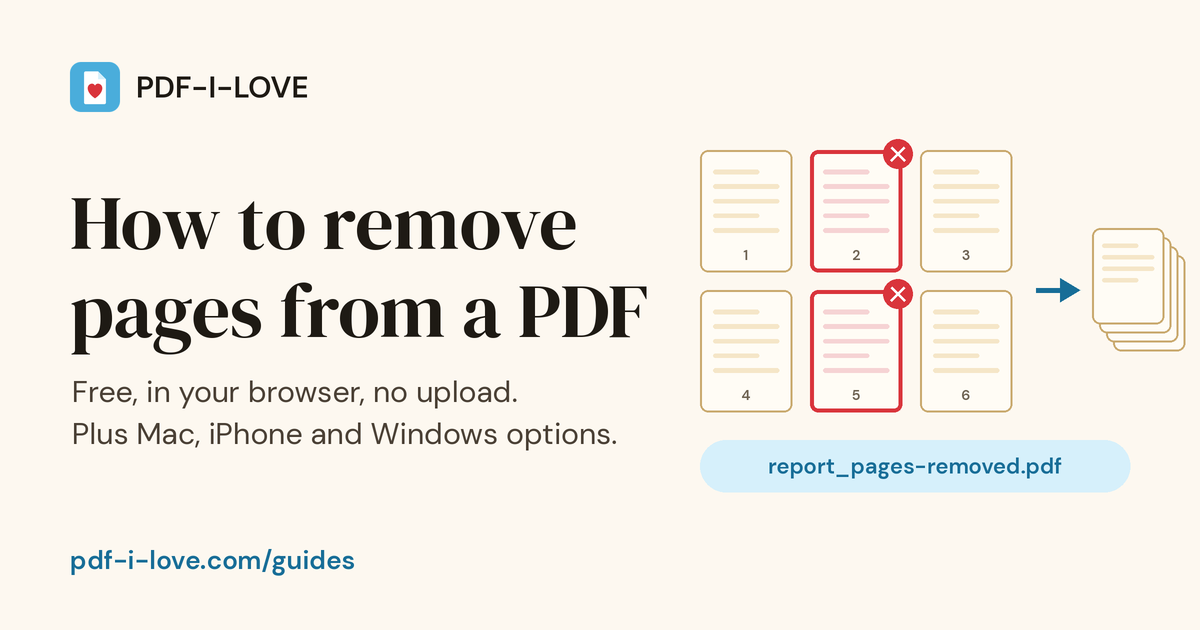
Maybe it's a blank page at the end of a scan, a cover sheet nobody needs, or the three pages of a contract that should not go to the client. Whatever the reason, removing pages from a PDF should take about as long as reading this paragraph. This guide shows the fastest way on any device, the built-in options on Mac, iPhone and Windows, and the few cases where things don't go to plan.
Remove pages from a PDF in 3 steps (any device)
These steps use our free Delete Pages tool. It works the same in Chrome, Edge, Safari and Firefox, on a laptop or a phone, and you don't need an account.
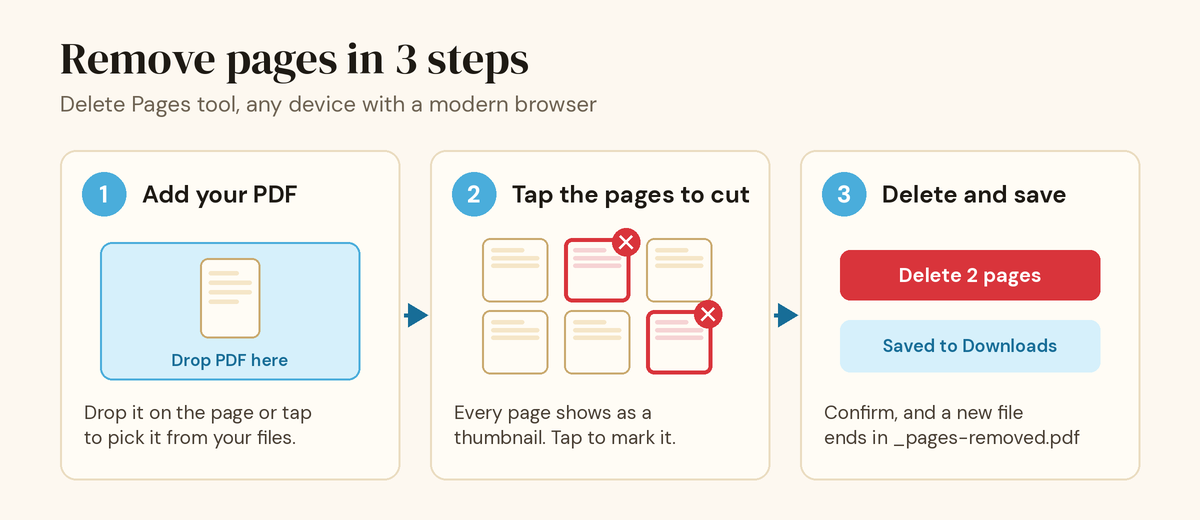
- Open the tool and add your PDF. Go to pdf-i-love.com/delete-pages/, then drop your file onto the page or tap the drop area to choose it. The tool takes one PDF at a time, up to 100 MB.
- Check the thumbnails. Every page shows as a small preview, and a line above the grid confirms the count, for example "Showing all 12 pages". If a thumbnail is too small to read, use the small full-screen button in its corner to see the page larger.
- Tap each page you want to remove. A marked page gets a red outline, and the button changes from "Delete selected pages" to the exact number, such as "Delete 2 pages". Tap a page again to unmark it.
- Delete and confirm. Click the button. The tool spells out what will happen ("Delete pages 2 and 5? 10 pages will remain.") so you can catch a wrong tap. Click Delete to go ahead or Cancel to go back.
- Find your new file. The result downloads straight away with "_pages-removed" added to the name, so report.pdf becomes report_pages-removed.pdf. The grid then reloads with the pages that are left, so you can remove more if you missed one.
Your original file is never touched. The tool builds a new PDF from the pages you kept and leaves the old one where it was, which also means there's nothing to undo: if you removed the wrong page, start again from the original.
Where your file goes
On your device. Delete Pages reads your PDF and writes the new one with JavaScript inside your browser tab. The file isn't sent to our server, so we never receive, store or see it. Our privacy policy lists which tools run in the browser and the few conversions that use a server.
If you want to check this yourself on a computer, open your browser's developer tools, switch to the Network tab, and run the tool. You will see the page's own scripts load, but no request carrying your PDF.
How to remove pages from a PDF on iPhone or iPad
Option 1: Delete Pages in Safari
- Open pdf-i-love.com/delete-pages/ in Safari.
- Tap the drop area and pick the PDF from the Files app, iCloud Drive or wherever it's saved.
- Tap the pages you want gone, tap the Delete button, then confirm.
- Safari saves the new PDF to the Downloads folder in the Files app. A Downloads button also appears next to Safari's address bar for quick access, as Apple describes in its guide to finding downloads.
Option 2: Apple's Preview app
Recent versions of iOS include a Preview app that can edit PDF pages. Apple's own steps for deleting a page in Preview on iPhone are:
- Open the Preview app and open your PDF.
- Tap the page count to show thumbnails. If it doesn't appear, tap the PDF first.
- Touch and hold the thumbnail of the page you want to remove, then tap Delete Page.
Preview works one page at a time, so it's fine for a single blank page. If you need to cut several pages from a long document, marking them all in the browser tool and deleting them in one go is usually quicker. Preview also edits the file you opened rather than making a copy.
How to remove pages from a PDF on Android
- Open pdf-i-love.com/delete-pages/ in Chrome or any other browser.
- Tap the drop area and pick your PDF. Files you received in a messaging app or email are often in the Downloads folder.
- Tap the pages to remove, tap Delete, and confirm.
- Chrome shows a message at the bottom when the download finishes. The file is in Chrome's Downloads list and, on most phones, in the Downloads folder of your Files app.
How to remove pages from a PDF on a Mac
If you're on a Mac, Preview is already installed and does the job well. From Apple's Preview guide:
- Open the PDF in Preview.
- Choose View > Thumbnails (or View > Contact Sheet) to see the pages.
- Select the page or pages to remove. Hold Command to select more than one.
- Press the Delete key, or choose Edit > Delete.
Two things to know. Apple notes that deleting a page also deletes any annotations on it. And Preview changes the file you've opened, so if you want to keep the full version, make a copy first: select the PDF in Finder and choose File > Duplicate.
The browser tool is the better choice when you're on a computer that isn't yours, when you also want to reorder pages or merge files in the same sitting, or when you want the original left alone automatically.
How to remove pages from a PDF on Windows
The quickest route on Windows is the same browser tool: open Delete Pages in Edge or Chrome and follow the three steps above. The file lands in your Downloads folder.
The print-to-PDF workaround
If you can't use a website at all, any browser can make a new PDF that only contains the pages you list. It works by keeping pages rather than deleting them:
- Open the PDF in Chrome or Edge.
- Press Ctrl + P (on a Mac, Command + P) to open the print window, as described in Chrome's print help.
- Set the destination to Save as PDF.
- Under Pages, choose a custom range and type the pages to keep. To drop page 3 from an 8-page file, type 1-2, 4-8.
- Click Save and choose where the new file goes.
Be aware that printing makes a fresh copy of what is shown on screen, not of the original file. Clickable links, fillable form fields and similar extras may not survive, so open the result and check it before you send it. Delete Pages copies the pages you keep as they are, which avoids that problem.
Delete Pages or Split PDF: which one?
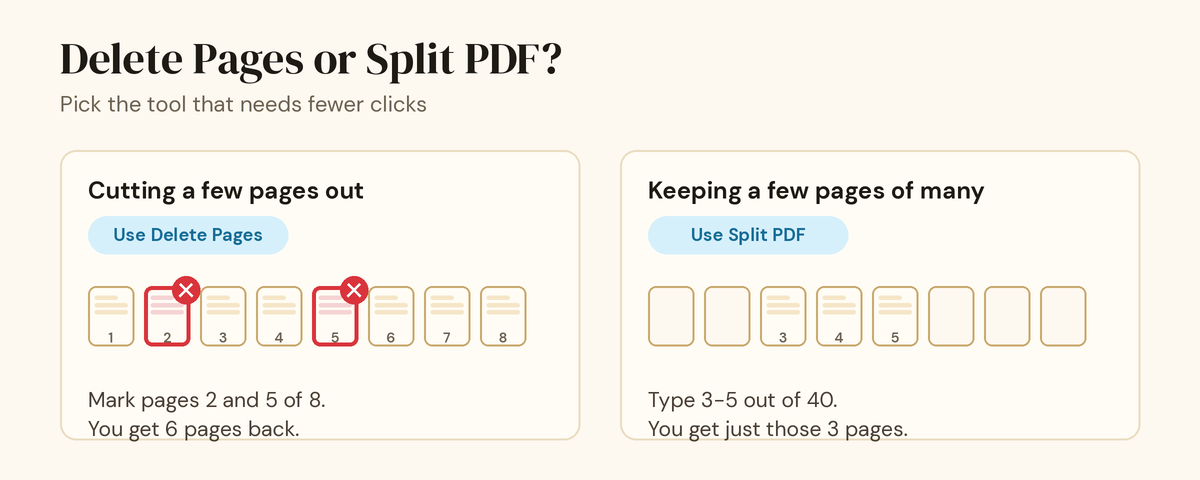
Both tools end with fewer pages, so choose the one that needs fewer taps. If you're cutting a few pages out of a document, use Delete Pages. If you want to keep only a handful of pages from a long file, say pages 3 to 5 of a 40-page report, use Split PDF, choose "Pick pages for one new PDF" and type 3-5. That's one short line of typing instead of 37 taps.
Removing pages from several PDFs at once
Delete Pages works on one file at a time. If you're combining documents and want to drop pages along the way, do it in two steps: merge the PDFs into one file first, then open the merged file in Delete Pages and cut what you don't need. If the order comes out wrong, finish with Reorder Pages. Each step saves a new file, so your originals stay as they were.
Every method side by side
| Method | Works on | File uploaded? | Original kept? | Best for |
|---|---|---|---|---|
| Delete Pages (browser) | Any device with a modern browser | No, runs on your device | Yes, saves a new file | Cutting several pages at once, on any device |
| Preview (Mac) | Mac | No | No, edits the open file | Mac users who already have the file open |
| Preview (iPhone) | iPhone with a recent iOS | No | No, edits the open file | Removing one or two pages on the go |
| Print to PDF | Any browser | No | Yes, saves a new file | Keeping a page range when no other tool is allowed |
| Split PDF (browser) | Any device with a modern browser | No, runs on your device | Yes, saves a new file | Keeping a few pages out of many |
When it won't work, and what to do
- The PDF is password protected. The tool can't open a locked file and will tell you so. Open it in a PDF reader that knows the password, save or print it as a new PDF without the password, then use that copy. Our help page covers this too.
- You tried to delete every page. A PDF needs at least one page, so the tool won't let you remove them all. If you want none of it, simply delete the file.
- The file is very large. The limit is 100 MB, and because all the work happens on your device, a big scanned file can be slow on an older phone. A laptop handles it faster.
- You need a smaller file, not fewer pages. Removing pages often makes the file smaller, but if you are trying to get under an upload limit, Compress PDF is the tool built for that.
- Your PDF has a bookmarks sidebar. The new file is built from the pages you keep, and the bookmark list some readers show in a side panel isn't carried over. The pages themselves are unchanged.
Before you send the new file
- Open the "_pages-removed" file and scroll through it once.
- Check the page count matches what you expected.
- Make sure no page you needed went missing, especially signature pages and appendices.
- Rename the file if the recipient expects a particular name.
- Keep the original until the new version has been accepted.
That's all there is to it. For the next job, our guides cover other everyday PDF tasks step by step, and the full set of free tools is on the home page.
Frequently asked questions
How do I remove pages from a PDF for free?
Open the Delete Pages tool on pdf-i-love.com, add your PDF, tap the pages you want gone and click Delete. It's free, needs no account and adds no watermark. On a Mac, Preview can also delete pages for free.
Can I remove pages from a PDF without Adobe Acrobat?
Yes. A browser tool such as Delete Pages works on Windows, Mac, Android, iPhone and iPad. Apple devices also have Preview, which can delete pages, and any browser can save a page range as a new PDF from the print dialog.
Is my PDF uploaded when I delete pages?
Not with the Delete Pages tool. It reads and rebuilds the PDF with JavaScript inside your browser tab, so the file stays on your device and never reaches our server.
Will removing pages lower the quality of the other pages?
No. The pages you keep are copied into the new file as they are, in their original order, so text, images and resolution don't change. Only the pages you marked are left out.
Can I undo it if I delete the wrong page?
Delete Pages never changes your original file. It saves a new copy, so if you removed the wrong page, start again from the original. Preview on a Mac edits the file you opened, so make a copy first if you want to keep the full version.
Why will the tool not open my PDF?
Usually because the PDF is password protected. Open it in a PDF reader that knows the password, save or print it as a new PDF without the password, and use that copy. Very large files can also be slow on older phones.