Is it safe to upload PDFs online? What to check first
Quick answer
Usually yes, if you check the tool first. Find out whether it works in your browser or uploads to a server, how long it keeps files, who hosts them and where, whether you need an account, and whether files are used for anything else. For IDs and contracts, pick a tool that runs in your browser.
Try Merge PDF (runs on your device)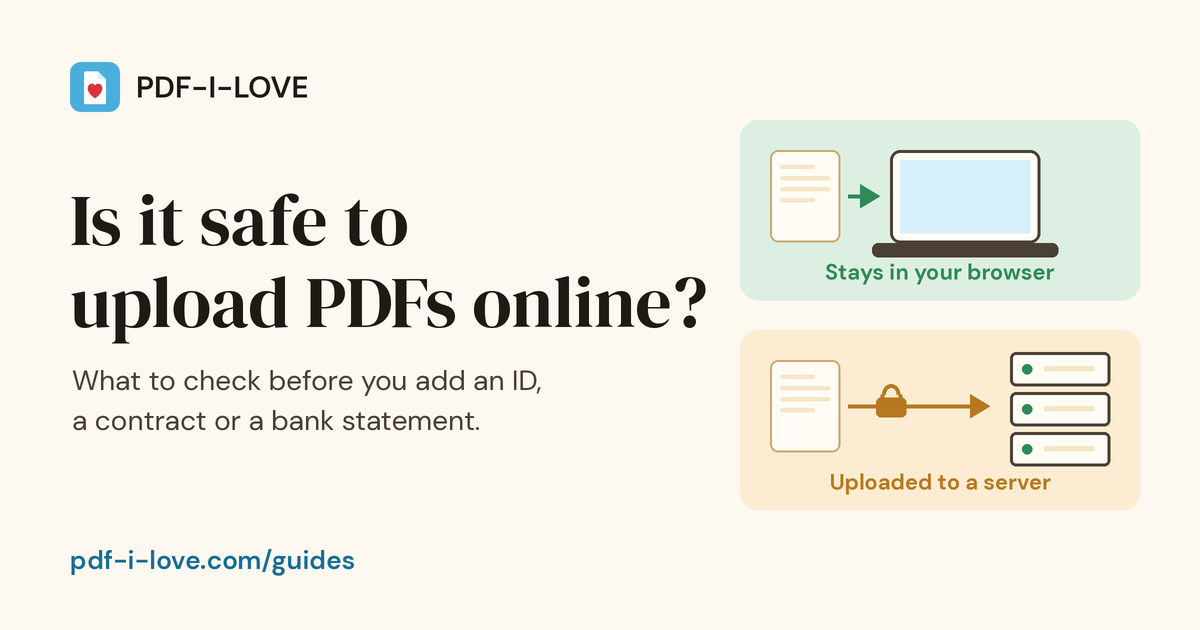
You're about to send a passport scan to a visa portal, a payslip to a landlord or a hospital letter to an insurer, and the file has to be smaller, merged or signed first. The quickest fix is a free PDF website. The worry is fair: where does the file actually go, and who can see it? This guide gives you a short check you can run on any PDF site in about two minutes, two ways to see for yourself whether a tool uploads your file, and plain advice on which documents deserve extra care.
The 5-point check before you upload
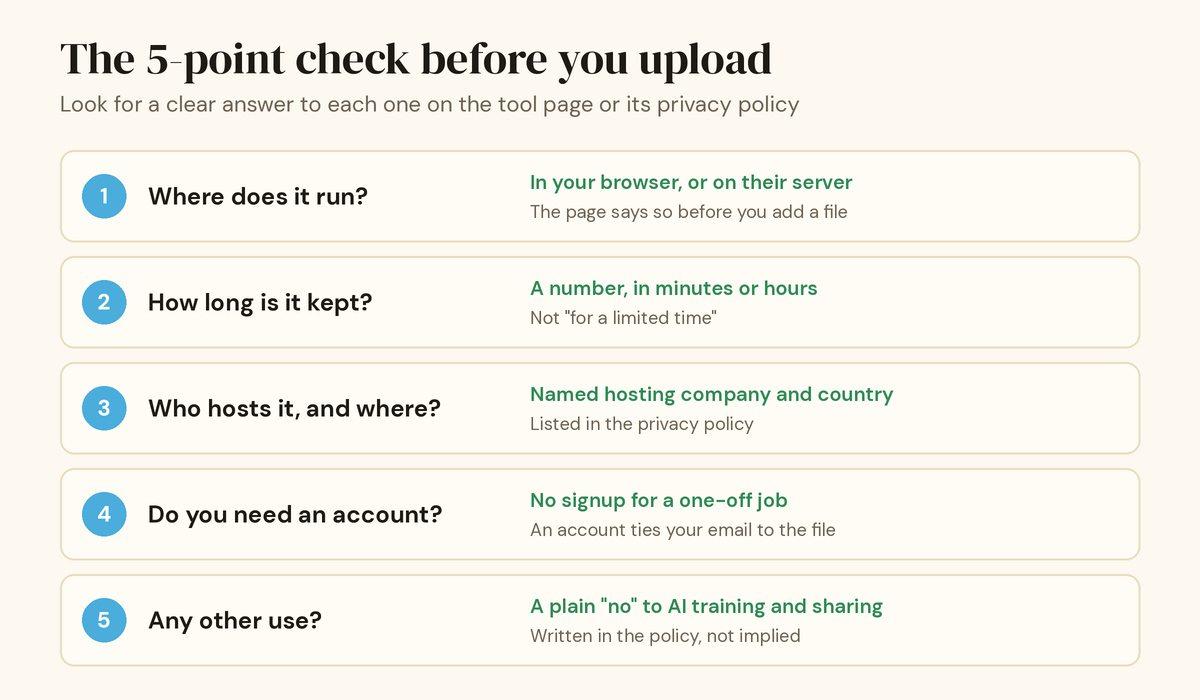
You don't need to read every line of a privacy policy. Hardly anyone does. Look for a clear answer to these five questions, either on the tool page itself or in the policy. If a site can't answer one of them plainly, that's your answer.
| Question | A good answer looks like | A warning sign |
|---|---|---|
| 1. Does it run in your browser or on a server? | The tool page says which, before you add a file | No mention anywhere, or only in small print after the upload |
| 2. How long is the file kept? | A number: "deleted within 1 hour", "after 30 minutes" | "For a limited time", "as long as necessary", or nothing at all |
| 3. Who hosts it, and in which country? | The hosting company and country are named in the privacy policy | No provider or location listed |
| 4. Do you need an account? | No signup needed for a one-off job | Signup required before you can download your own file |
| 5. Is the file used for anything else? | A plain "no" to sharing, selling and AI training | Vague rights to "improve our services" using your content |
1. In your browser, or on their server?
This one matters most. It decides whether the other four even apply. Some PDF jobs can be done entirely by code running in your browser tab: merging, splitting, deleting or reordering pages, signing, adding page numbers, turning images into a PDF. In that case the file is read from your disk, changed in memory and saved back to your Downloads folder. The website never receives it.
Other jobs usually need a server, because the software is too heavy for a browser. Converting Word, Excel or PowerPoint files, rebuilding a PDF as an editable Word document, reading text from a scan (OCR) and some kinds of compression fall into this group. Then your file really is uploaded, and the next four questions are the ones to ask.
2. How long is the file kept?
A server tool has to hold your file at least while it works on it. The question is what happens afterwards. Look for a number. "Deleted within 1 hour" is a promise you can hold a company to. "Stored for a limited period" isn't. Under the GDPR, which applies to companies handling personal data of people in the EU, the European Commission explains that personal data must be stored for the shortest time possible and that companies should set time limits to erase it. A PDF site that takes this seriously will tell you its limit.
3. Who hosts it, and where?
A trustworthy privacy policy names the companies that process your data for the site, such as the hosting provider, and the country the servers are in. That tells you which privacy law applies and who else technically handles the file. If the policy only says "trusted partners", you can't judge it.
4. Do you need an account?
For a single job, you shouldn't have to sign up. An account isn't dangerous in itself, but it links your email address to the files you process and gives the site a reason to keep them in a history. Be especially careful with sites that let you do all the work and only ask for an account, or payment, at the download step.
5. Is the file used for anything else?
Read the part of the policy about your content. You want to see that files are used only to give you the result, aren't shared or sold, and aren't used to train AI models. If the policy gives the company a broad right to use uploaded content to "improve its services", that can include more than you'd like for a bank statement.
In-browser or server: both can be safe
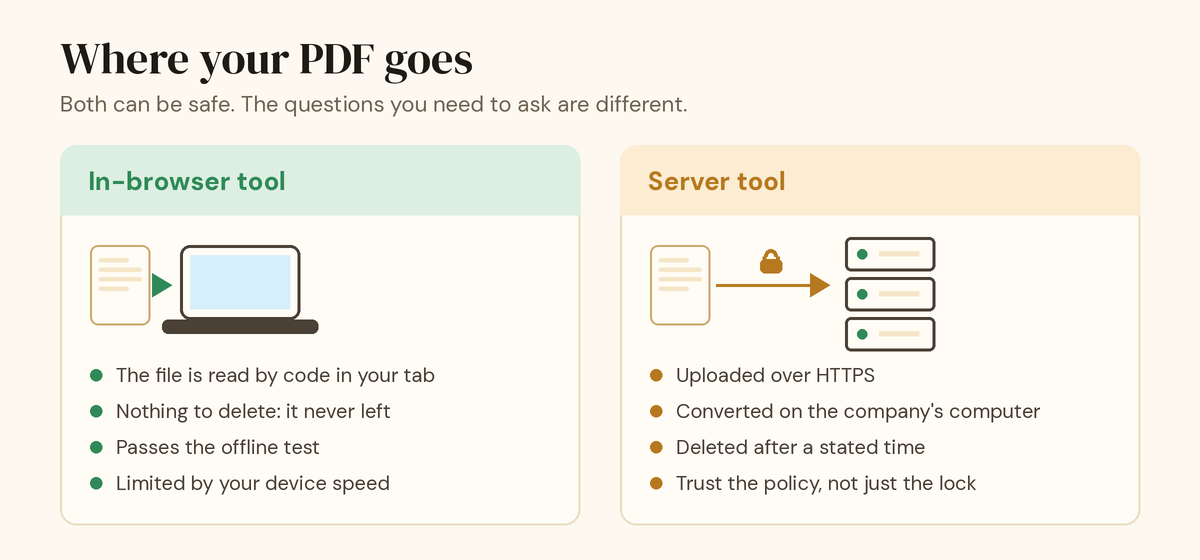
A server tool isn't automatically unsafe, and an in-browser tool isn't automatically perfect. They just ask for different kinds of trust. With an in-browser tool, you're trusting the code that runs in your tab, and you can check that it doesn't send your file anywhere. With a server tool, you're trusting the company's deletion policy and its security, because the file is on their computer for a while.
A simple rule: for anything that could be used to steal your identity or money, such as ID scans, tax forms or bank statements, prefer the in-browser route whenever the job allows it. For everyday files like a menu, a flyer or lecture notes, a server tool with a clear deletion time is fine.
How to check if a PDF tool uploads your file
"Your files never leave your device" is easy to write on a web page. Here are two ways to see whether it's true, no technical background needed for the first one.
The offline test (any device)
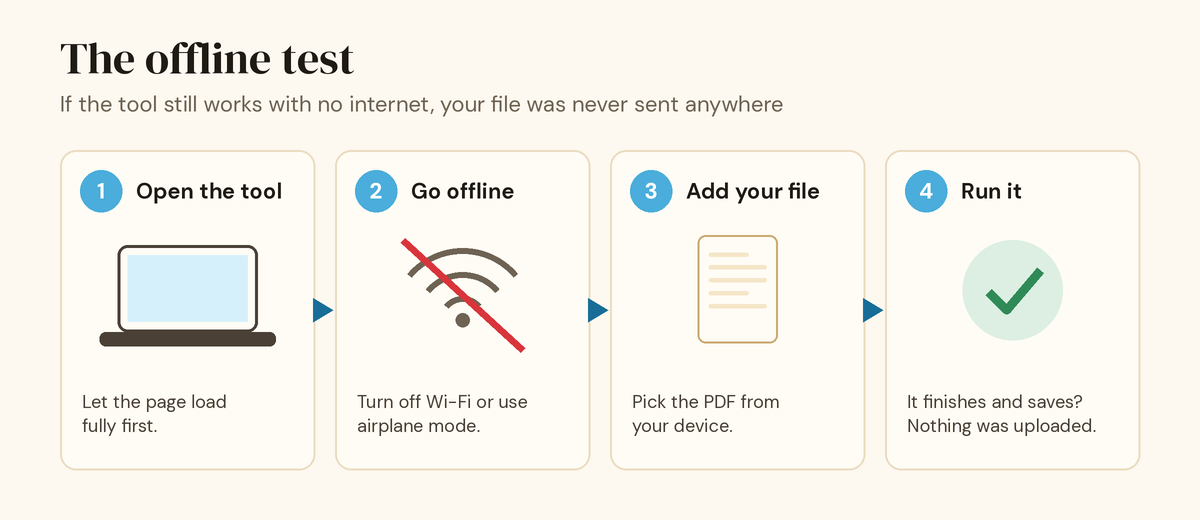
If a tool still works with the internet switched off, it can't be sending your file anywhere. There's one catch: many sites load the heavy part of a tool only when you first use it, so going offline too early can make an honest tool fail. Warming it up with a harmless file first avoids that.
- Open the tool and let the page finish loading.
- Add a harmless test PDF once, such as a menu or any file you wouldn't mind sharing. This makes the tool load all of its code. Then press Start over or Change.
- Go offline. Turn off Wi-Fi on a laptop, or switch on airplane mode on a phone. Unplug the cable if you're on a wired connection.
- Add the PDF you care about and run the tool.
- Check the result. If it finishes and saves while you're offline, the work was done on your device. Close the tab before you reconnect, so nothing can be sent later.
A server tool will simply fail offline, with a message about the connection. That's expected. It doesn't mean it's unsafe. It means it uploads, and question 2 above (how long the file is kept) becomes the one to check.
The Network tab test (on a computer)
Every desktop browser can show you each request a page makes. In Chrome or Edge, Google's guide to inspecting network activity covers the details. Firefox has the same feature, called the Network Monitor.
- Open the PDF tool, then press F12 (on a Mac, Command + Option + I) and choose the Network tab. In Firefox, Ctrl + Shift + E opens it directly. It only records while it's open.
- Add your file and run the tool.
- Look down the list. Requests for the page's own scripts are normal. What you're looking for is a request using the POST or PUT method whose size is close to your PDF's size. A 3 MB scan would show up as a request of roughly 3 MB. No such request? The file wasn't uploaded.
Analytics requests can also appear. Click one and check what it sends: page statistics are fine, your file's contents or name shouldn't be there.
Is HTTPS enough?
The padlock in the address bar means the page uses HTTPS. As MDN explains, HTTPS uses TLS to encrypt the traffic between your browser and the server. That stops people on the same café Wi-Fi from reading your file on its way. It's essential. But it only covers the trip. It says nothing about how long the file stays on the server, who can open it there, or what it's used for. Any site can have the padlock, so treat it as the minimum, not as proof.
Which documents need extra care
Not every PDF carries the same risk. A rough guide:
- Low risk: menus, flyers, published reports, course notes, anything already public. Any reputable tool is fine.
- Handle with care: contracts, invoices, CVs, payslips, school records. Prefer an in-browser tool. If you need a server, make sure deletion is automatic and quick.
- Highest care: passport or ID scans, tax returns, bank statements, medical records. Use an in-browser tool or a desktop app, and run the offline test first if you haven't used the site before.
- Don't put in a PDF at all: passwords, recovery codes for your accounts, and full card numbers with the security code. No tool needs them, and they shouldn't sit in a document.
If a portal only asks for part of a document, send only that part. Cutting a statement down to the one page they need is safer than any privacy policy. Our guide on how to remove pages from a PDF shows how to do it without uploading the file.
Quick checklist before you upload a sensitive PDF
- The tool page says whether it runs on your device or on a server.
- If it uses a server, the deletion time is written as a number.
- The privacy policy names the hosting company and country.
- You don't need an account to download your result.
- The policy says files aren't shared, sold or used to train AI.
- For IDs and financial papers, the offline test passed.
- You removed the pages the recipient doesn't need.
How PDF-I-LOVE handles your files
Here's how our own tools answer the five questions, so you can hold us to them. The full details are in our privacy policy.
- On your device: 15 of our 21 tools run entirely in your browser, including Merge PDF, Sign PDF, Delete Pages, Split, Rotate and JPG to PDF. We never receive those files. Each tool page says "On your device" above the drop area. While writing this guide we ran the offline test on Merge PDF, Sign PDF and Delete Pages, and all three worked with the connection switched off.
- On our server: 6 tools need one: Compress PDF, Word to PDF, Excel to PDF, PowerPoint to PDF, PDF to Word and OCR PDF. Their pages say "Uses our server" before you start. Files go over HTTPS to our server in Germany, hosted by Hetzner Online GmbH, and the file and the result are deleted within 1 hour.
- Compress PDF has a private mode. Choose "Private, on your device" and nothing is uploaded. The trade-off is that pages are saved as images, so the text can't be selected afterwards. It suits scans and photos.
- No account for the free tools, no ads, no tracking cookies (see our cookie policy), and we never use your files for anything else or to train AI.
Try it on us. Open Merge PDF and add one harmless PDF. Switch off Wi-Fi, add the files you actually want to combine, remove the test file with its ✕ button and click Merge PDFs. The merged file downloads with no connection at all.
For more everyday PDF jobs explained step by step, see all our guides.
Frequently asked questions
Is it safe to upload a PDF of my passport or ID online?
It can be, but it's the case where the choice of tool matters most. Prefer a tool that works in your browser, so the scan never leaves your device. If the job needs a server, read the privacy policy for how long files are kept and where the server is before you upload.
Which online PDF tools don't upload my file?
Tools that do the work in your browser with JavaScript. They're usually labelled. On PDF-I-LOVE, 15 of the 21 tools run on your device and each page says so above the drop area. You can confirm it with the offline test or the Network tab in your browser.
Do online PDF converters keep my files?
Server-based tools hold your file at least for as long as the conversion takes. Many delete it after a set time, which should be written in their privacy policy as a number of minutes or hours. No number? Assume it may be kept longer.
Can a PDF website see what's in my document?
A server tool has to open your file to convert it, so its software can read it while it works. Whether a person ever looks is a matter of the company's policy. An in-browser tool never receives the file, so there's nothing on its side to read.
Is HTTPS enough to keep my PDF safe?
HTTPS encrypts the file while it travels between your device and the server, so someone on the same café Wi-Fi can't read it. It says nothing about what happens once the file arrives, how long it's stored or who can open it there.
How do I delete a PDF I already uploaded?
It depends on the site. Some show a delete button after the conversion. Others delete files automatically after a stated time. On PDF-I-LOVE, the six server tools delete the file and the result within 1 hour without you doing anything. The other 15 tools never receive the file.