Merge PDF files without uploading them
Quick answer
Open Merge PDF, add two or more PDFs, put them in order by dragging or with the arrows, and click "Merge PDFs". The files are combined inside your browser, so they're never uploaded. There's no signup and no watermark. Want proof? Let the page load, turn off Wi-Fi, then add the files and merge. It still works.
Open Merge PDF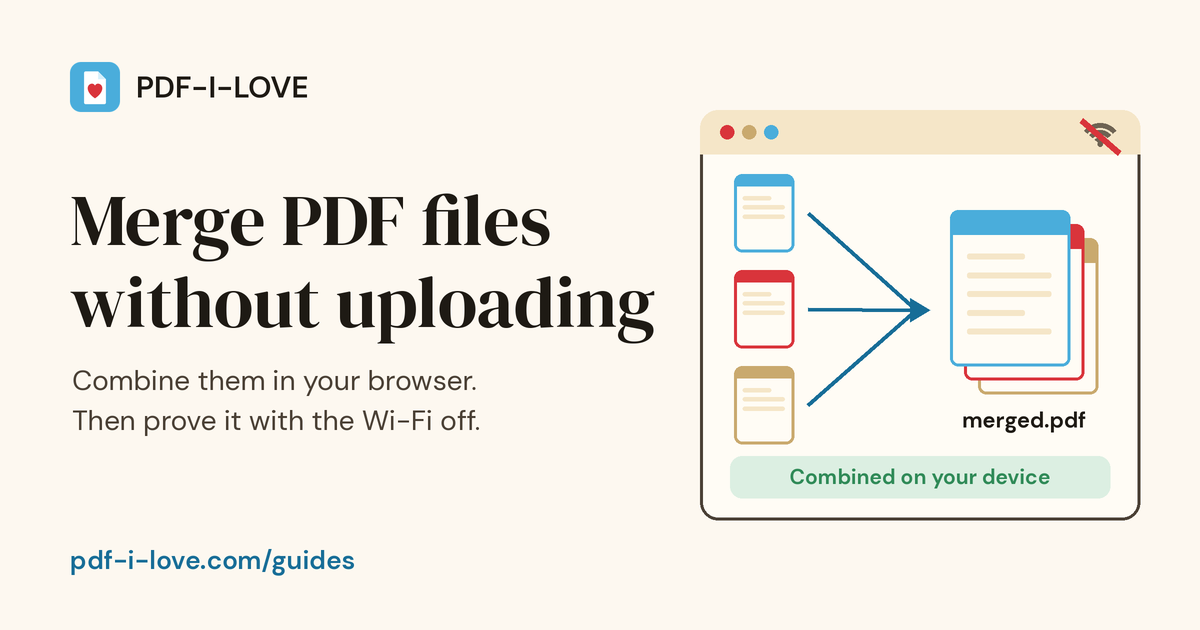
A visa form wants one PDF, but you have a bank statement, two payslips and a scanned ID. A landlord asks for "everything in a single file". These are exactly the documents you'd rather not hand to a random website. The good news: joining PDFs is a job your browser can do on its own, so the files never need to leave your phone or computer. This guide shows the steps on every device, a simple test that proves nothing was uploaded, and what to do when the merged file is too big for the portal you're sending it to.
Merge PDFs in 3 steps
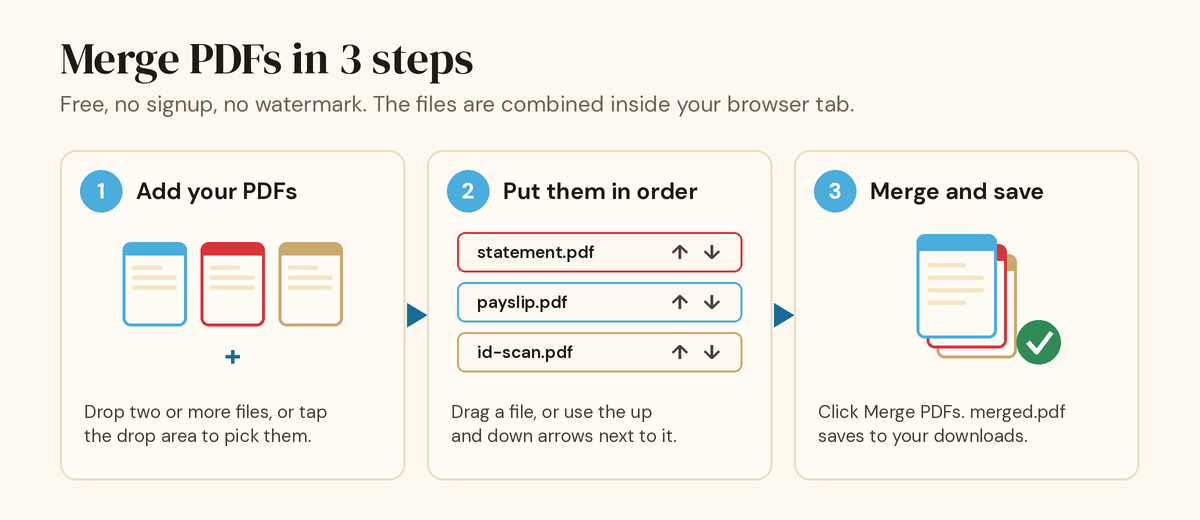
These steps are the same on a laptop, a tablet or a phone. Use any up-to-date browser: Chrome, Edge, Safari or Firefox. The diagram below uses three example files: statement.pdf, payslip.pdf and id-scan.pdf.
- Add your PDFs. Open Merge PDF and drop two or more files onto the drop area, or tap it to pick them from your device. Each file shows up in a list with its name and size. Forgot one? Tap Change files and pick it. New files are added to the end of the list, not swapped in.
- Put them in order. The merged file follows the list from top to bottom. Drag a file by the dotted handle on its left, or use the up and down arrows on its right. The cross removes a file you added by mistake.
- Merge and save. Click Merge PDFs. A file called merged.pdf saves to your downloads and the page confirms how many files went into it. Your original PDFs stay exactly as they were.
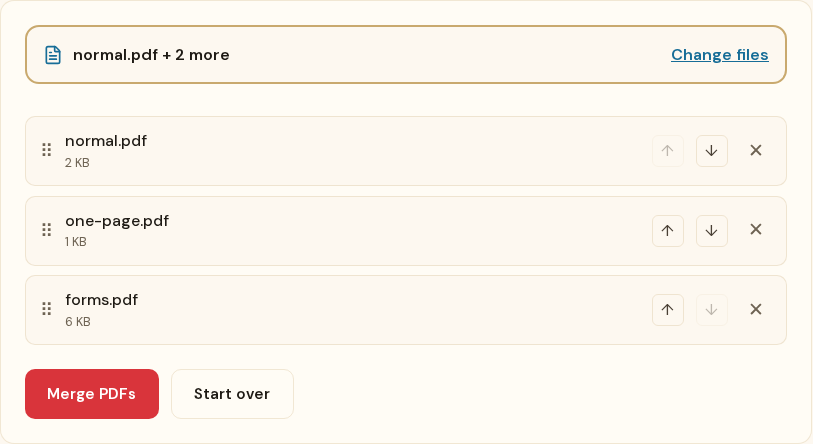
Here's what the tool looks like with three files added. The blue note above the drop area says the tool runs on your device. Every tool on the site has a note like this: "On your device" when it works in your browser, or "Uses our server" when the file is uploaded, so you know before you add anything.
There's no signup, no watermark and no waiting room. Pages are copied into the new file as they are, so text stays selectable and image quality doesn't change.
Prove it yourself: the Wi-Fi-off test
Any website can write "your files stay on your device". You don't have to take our word for it. If a tool still finishes with the internet switched off, it had no way to send your files anywhere. This takes about a minute on Windows, macOS, iOS or Android.
- Open Merge PDF and let the page finish loading.
- Wait a few seconds. Once the page is idle, the tool quietly loads the code it needs for merging. On a slow or data-saver connection it waits until you touch the drop area instead.
- Go offline. Turn off Wi-Fi on a laptop (the Wi-Fi icon in the Windows taskbar or the macOS menu bar), or switch on airplane mode on an iPhone or Android phone. Unplug the cable if you're on a wired connection.
- Add your PDFs and click Merge PDFs. If merged.pdf saves, the whole job happened on your device. Close the tab before you reconnect if you want to be thorough.
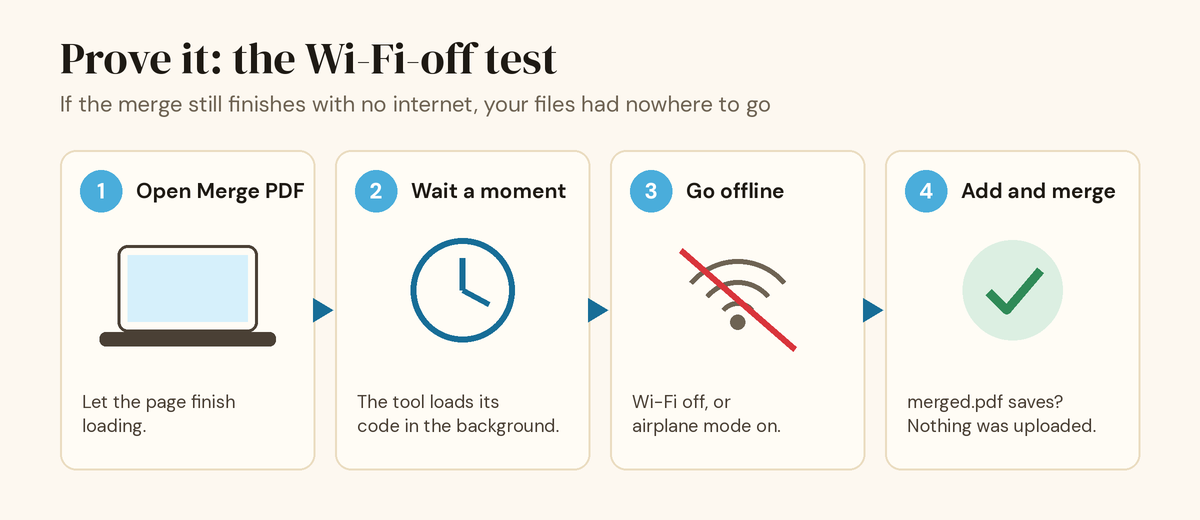
We ran this test on the live site on 2 November 2026 with three test PDFs in a desktop browser and again with a phone-sized screen. Both times merged.pdf saved while offline, with all seven pages from the three files. The only network activity the browser attempted while offline was fetching code for the page preview pane. No file was sent. That's why the preview may stay blank if you go offline before adding files. The merge itself isn't affected.
On a computer you can go one step further and watch every request the page makes. Press F12 in Chrome, Edge or Firefox on Windows (on a Mac, Command + Option + I), open the Network tab, then merge your files. Google's guide to inspecting network activity explains the panel. You'll see small requests such as page analytics, but no upload with a size anywhere near your PDFs. Our guide Is it safe to upload PDFs online? walks through both tests for any PDF website.
Merge PDFs on iPhone and iPad
You don't need an app. Safari does the work.
- Open pdf-i-love.com/merge-pdf/ in Safari on your iPhone or iPad.
- Tap the drop area and choose your PDFs from the Files app. If your PDFs are attachments in Mail or another app, save them to Files first so they're easy to find.
- If you can only pick one file at a time, tap Change files to add the next one. They stack up in the list.
- Reorder with the up and down arrows, which are easier than dragging on a small screen.
- Tap Merge PDFs. Safari may ask you to confirm the download.
According to Apple, Safari puts downloads in the Downloads folder in the Files app, and a Downloads button appears next to the address bar right after a download. From there you can rename the file, share it or attach it to an email.
Merge PDFs on Android
- Open pdf-i-love.com/merge-pdf/ in Chrome, Samsung Internet, Firefox or any other browser.
- Tap the drop area and pick your PDFs. On most Android phones you can long-press to select several files at once.
- Put them in order with the arrows, then tap Merge PDFs.
Google's help page says Chrome saves files to your default download location, which you can open from the Files app or from Chrome's menu under Downloads.
Merge PDFs on Mac and Windows
On a computer, the browser steps above work the same in Chrome, Edge, Firefox and Safari, and the file lands in your usual Downloads folder. Dragging files straight from a folder onto the drop area is the quickest way to add them.
Mac users also have two built-in options, and both work without the internet:
- Finder. Select the files in the order you want, Control-click them and choose Quick Actions > Create PDF. Apple notes that the files appear in the same order you select them, so Command-click them one by one (say statement.pdf, then payslip-1.pdf, then payslip-2.pdf) rather than dragging a box around them.
- Preview. Open the PDFs, choose View > Thumbnails and drag pages from one sidebar into the other. Apple's guide to combining PDFs in Preview warns that changes save automatically, so use File > Duplicate first if you want to keep the originals.
Which method should you use?
| Method | Works on | Files uploaded? | Originals kept? | Best for |
|---|---|---|---|---|
| Merge PDF (browser) | Any device with a modern browser | No, runs on your device | Yes, saves a new file | Phones, shared computers, any OS |
| Finder Quick Actions | Mac | No | Yes, creates a new file | A few whole files, already in one folder |
| Preview | Mac | No | No, edits the open file | Moving single pages between PDFs |
| Server-based merge sites | Any browser | Yes, for at least as long as the job takes | Yes | Files you wouldn't mind sharing |
Merging for an upload portal: watch the file size
Merging adds file sizes together. Three scans of 2 MB each make a merged file of roughly 6 MB, and ten of them come to about 20 MB, and many application portals cap uploads well below what a stack of phone scans adds up to. Check the portal's stated limit before you merge, then look at the size of merged.pdf (on a computer, it's shown in your Downloads folder; on a phone, long-press the file in Files).
If it's too big, run it through Compress PDF. To be clear about how that tool works: it has two modes. Best quality, the recommended one, uploads the file over an encrypted connection, compresses it on our server and deletes it within 1 hour. Text stays selectable. Private, on your device never uploads anything, but it turns each page into an image, so text can no longer be selected or searched. For an ID scan that's usually fine, since it's already an image. For a contract you may want to keep the text, so choose based on the document.
Removing pages you don't need also helps. A blank back page from a scanner is pure weight. Cut it with Delete Pages before or after merging. Our guide on removing pages from a PDF shows how.
Tips for a clean merged file
- Photos or paper documents? Merge PDF only takes PDFs. Turn photos into a PDF with JPG to PDF first. It runs in your browser too. Then merge the result with your other files.
- Need to fix the order afterwards? Open merged.pdf in Reorder Pages and drag individual pages around, instead of starting the merge again.
- Rename before you send. Every merge saves as merged.pdf, and a second one may become "merged (1).pdf". Give it a name the recipient will recognise, such as smith-visa-documents-2026.pdf.
- Check the page count. Scroll through the new file once. The total should equal the pages of all your files added together: a 12-page bank statement plus two 1-page payslips should give you 14 pages.
When it won't work, and what to do
- One of the PDFs is password protected. The tool can't change a locked file and says so when you click Merge. Open that PDF in a reader that knows the password, save or print it as a new PDF, and add the new copy instead. The help page covers this too.
- The Merge button is greyed out. You need at least two files. With one file added, the page asks you to add another.
- A file is over 100 MB. That's the limit per file. Files that big are usually high-resolution scans, and scanning again at a lower resolution is the simplest fix.
- It's slow on your phone. Everything happens on your device, so a batch of 20 or 30 large scans can take a while on an older phone. A laptop is faster for big jobs.
- The Wi-Fi-off test failed. Most likely the tool hadn't finished loading when you went offline. Reconnect, reload the page, tap the drop area once (you can cancel the file picker), wait a few seconds, then try again.
Before you send the merged PDF
- Open merged.pdf and scroll through every page.
- Check the order matches what the form or recipient asked for.
- Compare the file size with the portal's limit.
- Rename the file to something clear.
- Keep the original PDFs until your application has been accepted.
That's it. When you're ready, open Merge PDF and combine your files. Our other guides cover more everyday PDF jobs step by step.
Frequently asked questions
Can I merge PDFs without uploading them?
Yes. Merge PDF on pdf-i-love.com combines the files with JavaScript inside your browser tab, so they're read from your device, joined in memory and saved back to your downloads. You can check it by turning off Wi-Fi after the page loads: the merge still works.
Is there a limit on how many PDFs I can merge?
We don't set a fixed number of files. Each PDF can be up to 100 MB. Because the work happens on your device, very large jobs depend on how much memory your phone or computer has, so a laptop copes with big batches better than an older phone.
Do I need to sign up or install anything?
No. Open the page in a browser, add your files and merge. There's no account, no app to install and no email address to give.
Will the merged PDF have a watermark?
No. The pages are copied into the new file as they are, and nothing is added to them.
Can I merge JPG photos and PDFs together?
Not in one step. Merge PDF accepts PDF files only. Turn the photos into a PDF first with JPG to PDF, which also runs in your browser, then merge that file with your other PDFs.
Does Merge PDF work offline?
The merge itself doesn't need the internet once the page has loaded, which is how the Wi-Fi-off test works. You still need a connection to open the page in the first place, so it isn't an offline app.