Compress a PDF under 4 MB for IRCC uploads
Quick answer
Most IRCC accounts accept files up to 4 MB, and the IRCC Portal up to 5 MB. Open Compress PDF, add your file, pick "Private, on your device" for scans and IDs or "Best quality" for downloaded statements, then click Compress PDF. In our tests, a 20 MB six-page phone scan came out under 1 MB.
Open Compress PDF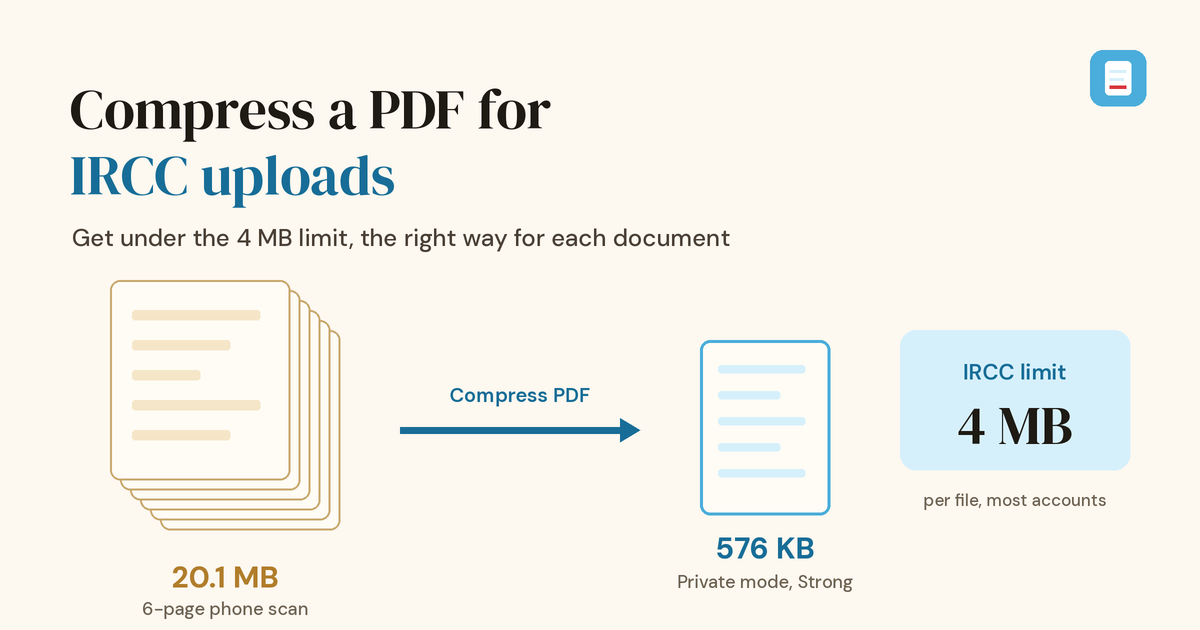
You photograph six pages of a bank statement with your phone, save them as one PDF, and the IRCC upload field turns it away. Phone cameras make big files: each of our sample pages came to between 3.3 and 3.5 MB, so even a short document can blow past the limit. This guide gives you the official limits, the steps to shrink each kind of document, what our own Compress tool did to real-size test files, and what to try when a file still won't fit.
One note before we start: this is about file sizes, not immigration advice. Which documents you need, and how IRCC assesses them, is set by IRCC and the instructions for your application.
IRCC file size limits by account
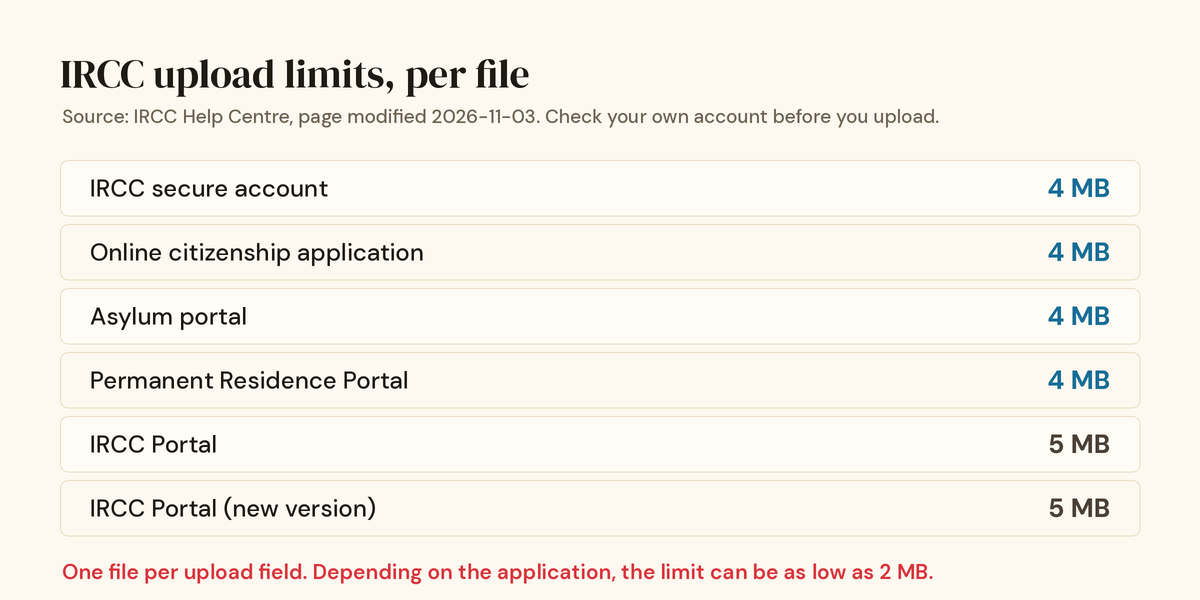
IRCC doesn't use one limit everywhere. Its Help Centre page on file size limits lists a limit per file for each type of online account:
| Online account type | Limit per file |
|---|---|
| IRCC secure account | 4 MB |
| Online citizenship application | 4 MB |
| Asylum portal | 4 MB |
| Permanent Residence Portal | 4 MB |
| IRCC Portal | 5 MB |
| IRCC Portal, new version | 5 MB |
That table was last modified on 3 November 2026, and we checked it on 6 November 2026. Two more rules from IRCC matter just as much. First, on its page about reducing file size, IRCC says that depending on what you're applying for, the limit can be as low as 2 MB. Second, each upload field takes only one file. If you upload several into the same field, only the last one is kept.
So aim for the number shown in your own account, not the one a friend used. If the page doesn't show a number, 4 MB is the safe target, since it's the lower of the two common limits. Computers don't all count megabytes the same way, so leave a little room and aim for about 3.8 MB or less.
Compress a PDF for IRCC in 5 steps
- Find your limit. Look at the upload field in your IRCC account and note the maximum size.
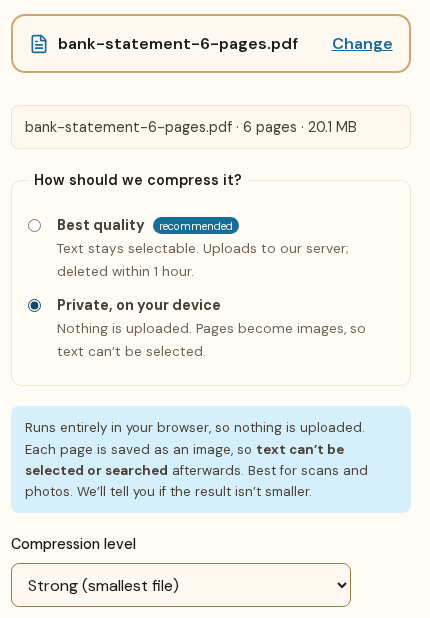
- Add your PDF. Open Compress PDF and drop the file on the page, or tap the drop area to pick it. The page shows the file's name, page count and size.
- Choose a mode. Pick Private, on your device for passport pages, IDs and anything you scanned or photographed. Pick Best quality for statements, letters and forms that were already PDFs when you downloaded them. The next section explains why.
- Pick a level (Private mode only). Start with Medium (recommended). Go to Strong if the result is still too big, or Light if you only need a small cut and want the sharpest pages.
- Compress and check. Click Compress PDF. Private mode shows the old and new size and saves a file ending in _compressed.pdf. Best quality saves the file under its original name, so your browser may add "(1)" to it. Open the result, zoom in, and check every page before you upload.
There's no signup, no watermark and no waiting for an email with a download link. The tool takes one PDF at a time, up to 100 MB.
Which mode should you pick?
Compress PDF has two modes because there are two kinds of PDF, and they shrink in different ways.
Private, on your device redraws each page as a JPEG image inside your browser and builds a new PDF from those images. Nothing is uploaded. This is the mode for scans and phone photos, because those pages are already images, so turning them into smaller images loses nothing you'd notice. The trade-off is that any real text in the file becomes part of the picture, so it can't be selected or searched afterwards.
Best quality sends the file over an encrypted connection to our server in Germany, where it is compressed and then deleted within 1 hour (our privacy policy has the details). It shrinks the images inside the PDF but keeps text as text. That makes it the better choice for a bank statement or employment letter you downloaded as a PDF, which is mostly text plus a logo.
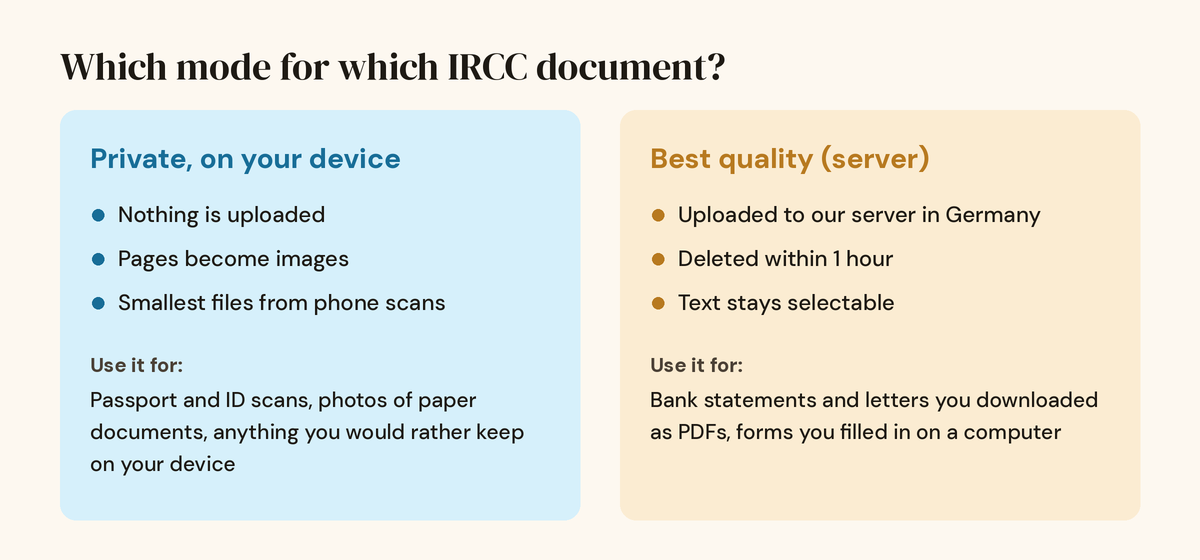
For a passport or national ID scan, we'd use Private mode every time. It's already an image, Private mode shrinks images best, and the scan never leaves your phone or computer. IRCC makes the same point about outside tools on its page about combining files: read their terms and privacy policy first. Our guide Is it safe to upload PDFs online? explains what to look for.
What to expect: our test results
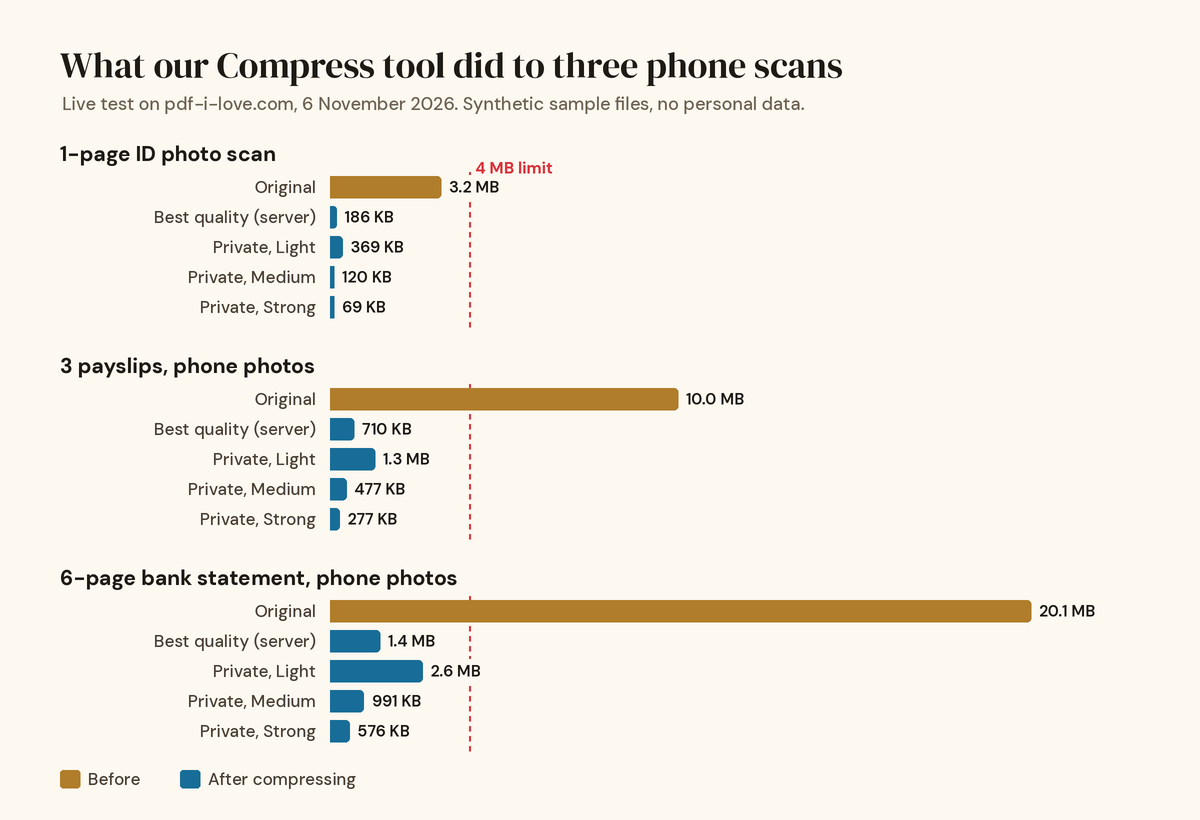
We didn't want to guess, so on 6 November 2026 we ran four sample files through the live Compress PDF tool in every mode and level. The three scans were made to look like phone photos of paper, at 3024 × 4032 pixels (12 megapixels) per page, with made-up text and no personal data.
| Test file | Original | Best quality | Private, Light | Private, Medium | Private, Strong |
|---|---|---|---|---|---|
| 1-page ID photo scan | 3.2 MB | 186 KB | 369 KB | 120 KB | 69 KB |
| 3 payslips, phone photos | 10.0 MB | 710 KB | 1.3 MB | 477 KB | 277 KB |
| 6-page bank statement, phone photos | 20.1 MB | 1.4 MB | 2.6 MB | 991 KB | 576 KB |
| 4-page text letter with one photo (made as a PDF) | 1.0 MB | 90 KB | No saving* | No saving* | 864 KB |
*For the text letter, Light and Medium would have made the file bigger, so the tool saved nothing and said so. That's the honest result for a text PDF: Private mode is the wrong tool there, and Best quality cut it from 1.0 MB to 90 KB with the text still selectable. Private mode finished each file in under 5 seconds on our test computer. Best quality took 7 to 16 seconds, including the upload.
Every scan landed well under 4 MB, and even under 2 MB, at every setting except Light on the 20 MB statement. On the Strong setting, our sample text was still easy to read when zoomed in. Your result depends on your pages: tiny print, faint stamps and handwriting lose detail sooner than our clean sample text, which is why the last step is always to look at the file.
Several documents, one upload field
Because each IRCC field keeps only one file, payslips, a letter and a bank statement for the same field have to become one PDF. Do it in this order:
- Photos first. If some pages are JPG photos, turn them into a PDF with JPG to PDF. It runs in your browser.
- Merge. Combine all the PDFs with Merge PDF, which also runs on your device. Our guide to merging PDFs without uploading them covers phones and computers.
- Compress last. Run the merged file through Compress PDF. If the merged file mixes scans and downloaded text pages, try Best quality first, then Private mode if it's still too big.
Compressing last means you only lose quality once, and you can see the final size before you upload.
Still over the limit? What to try next
- Go one level stronger. In Private mode, move from Medium to Strong. In our tests, Strong gave files about 40% smaller than Medium.
- Remove pages you don't need. Blank backs of pages, cover sheets and duplicate pages add size for nothing. Cut them with Delete Pages. Our guide on removing pages from a PDF shows how. Only remove pages you're sure IRCC doesn't ask for.
- Scan again at a lower resolution. IRCC suggests 96 or 150 DPI for scans. If your scanner app has a size or quality setting, a lower one gives a smaller starting file.
- Crop the edges. IRCC also suggests cropping empty space around photos of documents. A photo that shows the table around the page is bigger than it needs to be.
- Check for a second field. Some applications have more than one place for a document type, or an extra field for other documents. Use them only the way your application's instructions describe.
One thing we can't promise: that every document will fit. A long, detailed document in a 2 MB field may not stay readable once it's that small. If the only way to hit the number is a blurry file, it's better to check your application's instructions or contact IRCC than to send pages nobody can read.
Before you upload to IRCC
- The file size is below the limit shown in your account, with a little room to spare.
- Every page is there, in the right order, the right way up.
- Names, numbers, dates, stamps and signatures are readable when you zoom in.
- All the documents for this field are in one PDF.
- The file has a clear name, such as bank-statement-2026.pdf, instead of merged (1).pdf.
- You've kept your original, full-quality files in case IRCC asks for them again.
Ready? Open Compress PDF and add your file. For more everyday PDF jobs, see our other guides.
Frequently asked questions
What is the maximum file size for IRCC uploads?
It depends on the account. IRCC's Help Centre lists 4 MB per file for the IRCC secure account, the online citizenship application, the Asylum portal and the Permanent Residence Portal, and 5 MB per file for the IRCC Portal and its new version. Some applications set lower limits, as low as 2 MB.
Can I upload several files in one IRCC document field?
No. IRCC says you can upload only one file per field, and if you add more, only the last one is kept. Combine the documents into one PDF first, for example with Merge PDF, then compress that single file if it's over the limit.
Is it safe to compress my passport scan online?
Use a mode that doesn't upload it. In the "Private, on your device" mode of Compress PDF, the file is processed inside your browser and never sent to a server. The "Best quality" mode uploads the file to our server in Germany and deletes it within 1 hour. IRCC itself advises reading the privacy policy of any third-party tool.
Will IRCC accept a PDF where the pages are images?
IRCC's own Help Centre suggests combining images of your documents into a PDF file, so image-based pages are normal. What matters is that every page is complete and readable. Zoom in on the compressed file before you upload and check small print, stamps and signatures.
Why is my PDF still over 4 MB after compressing?
Usually because it has many high-resolution pages. Try Private mode with the Strong level, remove pages you don't need, or scan again at 150 DPI or lower, which is what IRCC suggests. If the document really is long, check whether your application gives you a second field for it.
Does compressing add a watermark or need an account?
No. Compress PDF is free, adds no watermark and works without signing up.